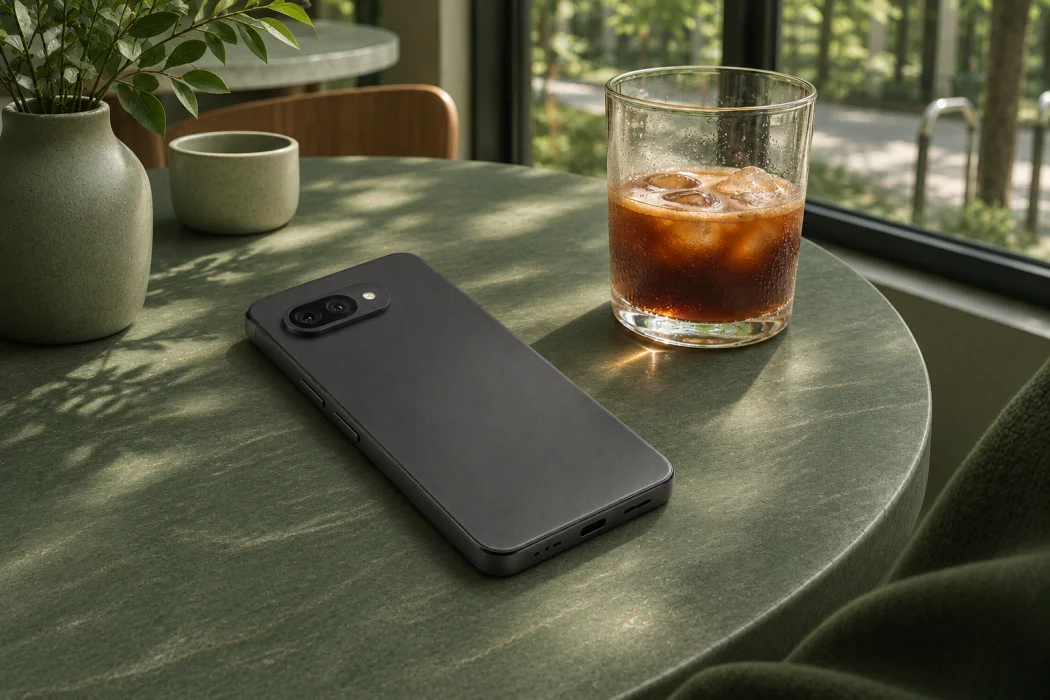
On shared Wi-Fi.
From the café to a hotel lobby, connect Insy to help protect the traffic your Android device sends over shared networks.
VPN for Android
A one-tap VPN for everyday browsing. Add a layer of privacy to your connection wherever you get online.
Listed as Voyage VPN on Google Play.

 insy
What Insy does
Connect when you want an added layer of privacy, and see when your VPN is active.
From the café to a hotel lobby, connect Insy to help protect the traffic your Android device sends over shared networks.
Android’s VPN service routes traffic through the tunnel from your device to the VPN endpoint.
Start or stop the VPN in Insy. Check the status in the app or in Android’s VPN settings.
How it works
Set up Insy once, then connect whenever you need it.
Read the setup guideOpen Google Play on your Android device and install the app.
Open Insy, tap Connect, and approve the Android VPN prompt when it appears.
Look for the connected status in Insy. Use the same control to disconnect.
Android asks you to approve the VPN connection when Insy first sets it up. Review the system prompt and approve it if you want Insy to handle the connection.
The tunnel is designed to protect the traffic Android routes through it between your device and the VPN endpoint. Websites and apps still handle the information you give them under their own privacy policies.
Check the connection status in Insy. Depending on your Android version and device, you can also look for the VPN icon or see your current VPN in Android Settings.
Insy is the name used on this website. The same app on Google Play is currently listed as Voyage VPN.